
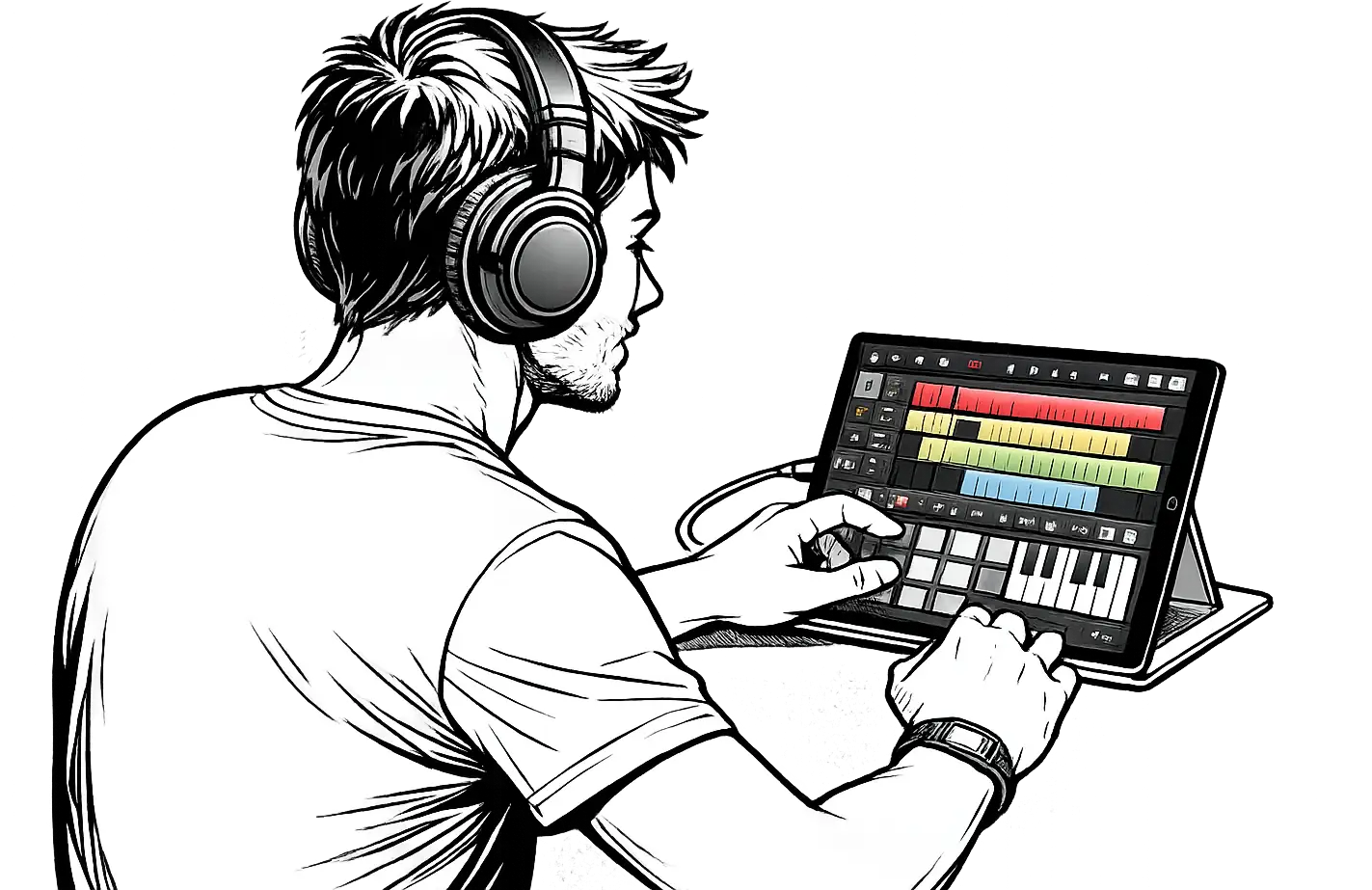
Once upon a time, making music meant a studio crammed with cables, mixers, and racks that looked like a spaceship control panel. You needed a separate synthesizer, drum machine, microphone, audio interface, and a tiny army of cables just to record a simple song. Today, your entire music production rig can fit in your backpack — or even your pocket. With an iPad (or iPhone) and a few clever apps, you can record, sequence, mix, and even perform live, all in one mobile music studio. It’s amazing to think that the same device that checks your email or streams movies can also produce music that rivals professional studios.
Whether you’re asking how to make music on iPad for fun, electronic beats, or full vocal productions, this guide covers everything: from beginner setups to advanced performance rigs. By the end, you’ll know exactly what hardware and software you need, which apps to start with, and how to take your music from your bedroom to the stage — or just to your headphones for pure fun.

Step 1: Decide What Kind of Music You Want to Make
Before you dive into downloads, adapters, and cables, it’s worth pausing to ask yourself a crucial question:
“Am I programming sounds — or recording real ones?”
This simple distinction shapes everything — from what gear you buy, to how you set up your workflow, and even which apps you will enjoy most. If you’re planning on making purely electronic music, your path is different than if you’re recording vocals, guitars, or other acoustic instruments. Knowing this upfront saves you from spending money on gear you don’t need and helps you avoid frustration later.
Electronic Music (No Microphone Needed)
If your goal is electronic music — think EDM, Techno, House, Ambient, Trap, Lo-fi, Drum & Bass, or Synthwave — the good news is you can get started with just a few things. You don’t need microphones, preamps, or acoustic treatment because your iPad already contains everything to produce professional-sounding tracks. You’ll have synthesizers, drum machines, samplers, effects, and even a mixer — all in your pocket.
Beginner Setup
For absolute beginners in electronic music, simplicity is key. You can start with:
- Your iPad
- Bluetooth headphones or AirPods (or any pair of headphones you love)
- A DAW like GarageBand iPad or FL Studio Mobile
With these tools, you can experiment, sketch ideas, and even make full songs without spending a penny on extra hardware. Don’t worry if your headphones are wireless; the slight latency is barely noticeable for casual creation. Fun fact: some of the most creative producers started just pressing pads on GarageBand while commuting on the bus.
“The best way to start producing Techno is not buying gear. It’s pressing record.”
Advanced Setup
Once you’ve gotten the hang of sequencing beats and layering synths, it’s time to expand your setup to unlock more expressive possibilities:
- MIDI keyboard for expressive synth lines and more natural performances
- Pad controller for fast, hands-on drum programming
- Advanced AUv3 synths and effects to give your tracks unique textures
- A professional iOS DAW like Logic Pro iPad or Cubasis
- USB-class-compliant audio interface for better sound quality, ultra-low latency, and reliable monitoring
Adding an audio interface not only improves your sound, but it also allows you to integrate external synths, drum machines, and other hardware, giving you the feel of a professional studio without the clutter

Music With Vocals or Acoustic Instruments
If you’re producing Rap, R&B, Pop, Rock, Jazz, Indie, or Singer-songwriter music, your workflow changes. Suddenly, you’re capturing real-world sounds, so hardware choices become more important. Even a small detail like the quality of your microphone or preamp can dramatically affect the tone and clarity of your recordings.
Beginner Vocal Setup
You don’t need a full studio to start. For demos or songwriting, you can begin with:
- The built-in iPad microphone
- Headphones
- GarageBand iPad
This setup is perfect for capturing ideas, making social media clips, or recording simple demos. Many successful artists started exactly here — proving that creativity is more important than expensive equipment at first.
If you’re using the Voice Memos app by Apple, it supports layered recordings (introduced in iPadOS 18.2 and later). This allows you to add a new isolated track (like vocals) over an existing one (like an instrumental), with the original playing back while you record. On supported iPhone models (iPhone 16 Pro / Pro Max), you can do this without headphones—the device plays through speakers while isolating your new recording cleanly.
Voice Memos integrates seamlessly with Logic Pro (on iPad or Mac)—you can drag and drop recordings (including separated layers) straight into a Logic project for professional mixing, editing, and production.
Advanced Vocal/Instrument Setup
When you want professional-quality recordings, consider upgrading to:
- USB-class-compliant audio interface
- XLR microphone (condenser or dynamic, depending on your style)
- Closed-back headphones (to prevent sound from leaking into microphones during recording sessions)
- Studio monitors (optional but helpful for mixing)
This ensures your recordings have clean preamps, proper gain staging, and professional clarity. With Logic Pro iPad, you can then layer tracks, apply AUv3 plugins, and create polished productions entirely on your iPad.
“If you’re recording Rap or Pop, your microphone is just as important as your DAW.”

Step 2: Recommended Hardware
Instead of scattering recommendations throughout the article, we’ve collected all the suggested gear here in one spot. It’s an easy way to see what could complete your setup and decide what’s really worth adding.
Audio Interfaces
To connect microphones, guitars, or synthesizers, these class-compliant USB interfaces work seamlessly with iPad music production:
- Audient EVO 4 – Smartgain auto-level feature sets gain automatically, compact, great preamps, and very iPad-friendly.
- MOTU M4 – Excellent audio quality, sturdy metal construction, and bus-powered.
- Apogee Duet 3 – High-quality converters, onboard DSP FX controlled by dedicated iPad app, premium Apple-style design.
- Zoom AMS-24 – Ultra-compact, battery-powered, “Streaming Mode” to blend inputs, ideal for busking or travel recording.
- Behringer U-Phoria UMC202HD – Affordable and portable, Midas-designed preamps, perfect for beginners or simple iPad setups.
If you’d like to compare more options, here is our full list of audio interfaces for iPad music production.
MIDI Controllers & Control Apps
You can control your music either via physical MIDI devices or touch-based controller apps:
Physical MIDI Controllers (USB or Bluetooth):
- Arturia MiniLab 3 -25-key slim MIDI controller with pads, faders, and DAW integration, excellent for expressive control in iPad sessions.
- Akai MPK Mini IV – 25-key MIDI keyboard controller with eight pads, eight knobs, pitch and modulation wheels.
- ESI Xkey Air series (e.g., Xkey Air 25) – Ultra-slim, Bluetooth-enabled portable MIDI keyboard with aftertouch, perfect for wireless iPad freedom.
- ROLI Piano M – Compact, MPE-enabled MIDI keyboard controller with pressure-responsive keys and RGB backlighting, perfect for expressive iPad music production.
- Novation Launchpad Mini MK3 – 64-pad grid controller optimized for clip launching and beat-making, strong iPad compatibility.
- Akai Professional MPD218 – Compact 16-pad MIDI controller with MPC-style pads, a reliable choice for finger-drumming and beat-making on iPad.
A proper MIDI iPad setup unlocks expressive playing, hands-on automation, and significantly faster workflows — whether you’re performing live, programming beats, or recording layered instruments. To build a powerful and reliable setup, explore our full list of compatible MIDI keyboards and pad controllers.
Controller Apps (touch-based):
To some degree you can replace MIDI controllers with controller apps. A lot of them ofter MPE (MIDI Polyphonic Expression) support, which is still rare in hardware keyboards.
- KB-1 Keyboard Suite by Fingerlab – Advanced on-screen MIDI keyboard app with expressive control, ideal for replacing traditional MIDI keyboards in iPad music production.
- Velocity Keyboard by Blue Mangoo – Touch-sensitive MIDI keyboard app emulating velocity and poly aftertouch to control synths expressively from your iPad.
- GeoShred Control by moForte – Free expressive MPE MIDI controller with innovative surface for poly control and chord-friendly playing.
- Seaboard 5D by ROLI – Expressive, touch-responsive musical instrument that emulates the iconic Seaboard hardware’s 5D Touch capabilities for highly nuanced performances.
If you want to turn your iPad into a fully customizable control surface, check out our full list of recommended controller apps for iOS.
Step 3: Choosing Your iOS DAW
Your DAW is the heart of your workflow. Each has unique strengths:
- GarageBand iPad – Free, beginner-friendly, intuitive touch instruments, and Apple Loops. Perfect for starting projects quickly.
- FL Studio Mobile – Lightweight, beat-focused, ideal for electronic or hip-hop production. Works seamlessly on iPad and iPhone.
- Logic Pro iPad – Professional multi-track recording, advanced MIDI, and mixing capabilities. Perfect for serious projects.
- Cubasis – Desktop-style interface, strong MIDI tools, structured workflow, great for transitioning from a desktop DAW.
Here is a full list of iOS DAWs to choose from.
Step 4: Expanding With AUv3 Plugins
AUv3 plugins let you turn your iPad into a limitless studio. You can add:
- Boutique synthesizers for unique sounds
- Studio-grade compressors, EQs, and effects
- Reverbs and delays for depth
- Experimental effects for creative sound design
Host them in GarageBand, Logic Pro iPad, Cubasis, AUM, or Loopy Pro, and you can create professional tracks with infinite customization.
Find your favorites in our vast list of AUv3 plugins.

Step 5: Live Performance and Gigging
Your iPad (or iPhone) isn’t just a studio — it can become a full live rig. Whether performing electronic music, vocals, or acoustic instruments, the same device can act as multiple pieces of gear at once.
Electronic Performance
Apps like AUM and Loopy Pro are favorites among electronic performers:
- AUM – Real-time routing, mixing, AUv3 hosting, and modular setups. You can chain synths, effects, and loops in any order you like.
- Loopy Pro – Live looping, clip launching, AUv3 hosting, and MIDI automation. Perfect for improvisation and layering complex patterns.
These apps allow real-time control, modular routing, and a truly hands-on approach to performing electronic music.
Gigging Musician’s Swiss Army Knife
With a USB-class-compliant audio interface, your iPad can act as:
- Sound module – run virtual instruments live
- Multi-effect unit – host AUv3 effects like delays, reverbs, distortion
- Pedalboard – chain effects for guitars, synths, or vocals
- Mixer – route multiple inputs on stage
This works for solo performers, bands, and anyone who wants a compact, flexible rig. With just an iPad, MIDI keyboard, audio interface, and some well-chosen apps, you can take a fully professional setup to gigs without heavy racks or pedalboards.
“With the right apps and interface, your iPad isn’t just a studio — it’s your live rig.”
Step 6: Electronic vs Vocal Setup Comparison
| Feature | Electronic Music | Vocal / Acoustic Music |
|---|---|---|
| Microphone needed | ❌ No | ✅ Yes |
| Audio interface | Optional | Recommended |
| MIDI controller | Very useful | Optional |
| Setup complexity | Low | Medium |
| Starter apps | GarageBand / FL Studio | GarageBand / Logic Pro |
Step 7: The Real Secret
The key to iPad music production is matching your setup to your goals:
- Electronic producers can stay minimal for months
- Vocal or acoustic producers benefit from investing early in quality microphones and interfaces
- Everyone should start before they feel “ready”
Your iPad is not a toy — it’s a powerful, portable studio and performance rig capable of composition, production, and live performance.

TL;DR: How to Make Music on iPad
- Start with your iPad, headphones, and a DAW
- Decide if you’re programming (electronic) or recording (vocal/acoustic)
- Add MIDI controllers and AUv3 plugins as needed
- Upgrade with an audio interface for better sound and live performance
- Consider AUM or Loopy Pro for live sets and modular routing
- Expand at your own pace — your iPad can grow into a full mobile music studio


Leave a Reply